On 2026-09-04
by Clara Chalumeau, Cyber Incident Responder
Cybersecurity

Performing Linux Dead Disk Forensic Analysis with Velociraptor

Dead disk analysis with Velociraptor
Summary

What is Velociraptor?

Velociraptor is an open source digital forensic and incident response tool that supports several deployment models depending on the investigation scenario. While the most common approach is the client-server model, where agents are deployed on endpoints and communicate with a central server, Velociraptor can also operate through offline collectors or virtual clients when agent installation is not possible or when only acquired evidence is available.   


Dead Disk Analysis with Velociraptor 

Velociraptor provides an interactive analysis mode for forensic investigations of raw disk images. By using remapping rules, a virtual client can be launched from an acquired disk image, allowing investigators to collect and analyse artifacts using the same workflows and Velociraptor Query Language (VQL) queries they would use against a live endpoint. Dead Disk Analysis extends Velociraptor’s capabilities beyond live response by enabling investigators to interact with forensic disk images as virtual endpoints directly from the Velociraptor Graphic User Interface (GUI). 

From an analyst’s perspective, the mounted image behaves similarly to a live client, making it possible to run standard artifacts, hunts, and VQL queries against the offline system. This provides a consistent investigation workflow regardless of whether the evidence originates from a running endpoint or a forensic acquisition. 

It is important to note that Dead Disk Analysis is limited to artifacts stored on disk. Volatile data sources such as memory contents, running processes, active network connections, and other runtime-only artifacts are not available. Nevertheless, filesystem analysis, log review, persistence investigations, timeline creation, and many other forensic tasks can be performed effectively. 

In the following sections, we will walk through the complete process of mounting a Linux forensic image, configuring Velociraptor remapping, and launching a virtual client for offline analysis. 


Mounting the Linux Image 

In this walkthrough, we’ll work with a forensic disk image stored in EWF (E01) format. Before Velociraptor can interact with the image, the filesystem must be exposed on the analysis workstation. To achieve this, we first mount the EWF container using ewfmount, then use guestmount to access the filesystem contained within the image in read-only mode.

Shell
[sudo] ewfmount image.E01 /mnt/ewf 
[sudo] guestmount -a /mnt/ewf/ewf1 -i --ro /mnt/guest 
Performing Linux Dead Disk Forensic Analysis with Velociraptor

The mounted filesystem is now accessible through /mnt/guest and can be referenced by Velociraptor. 

Creating the Remapping Configuration 

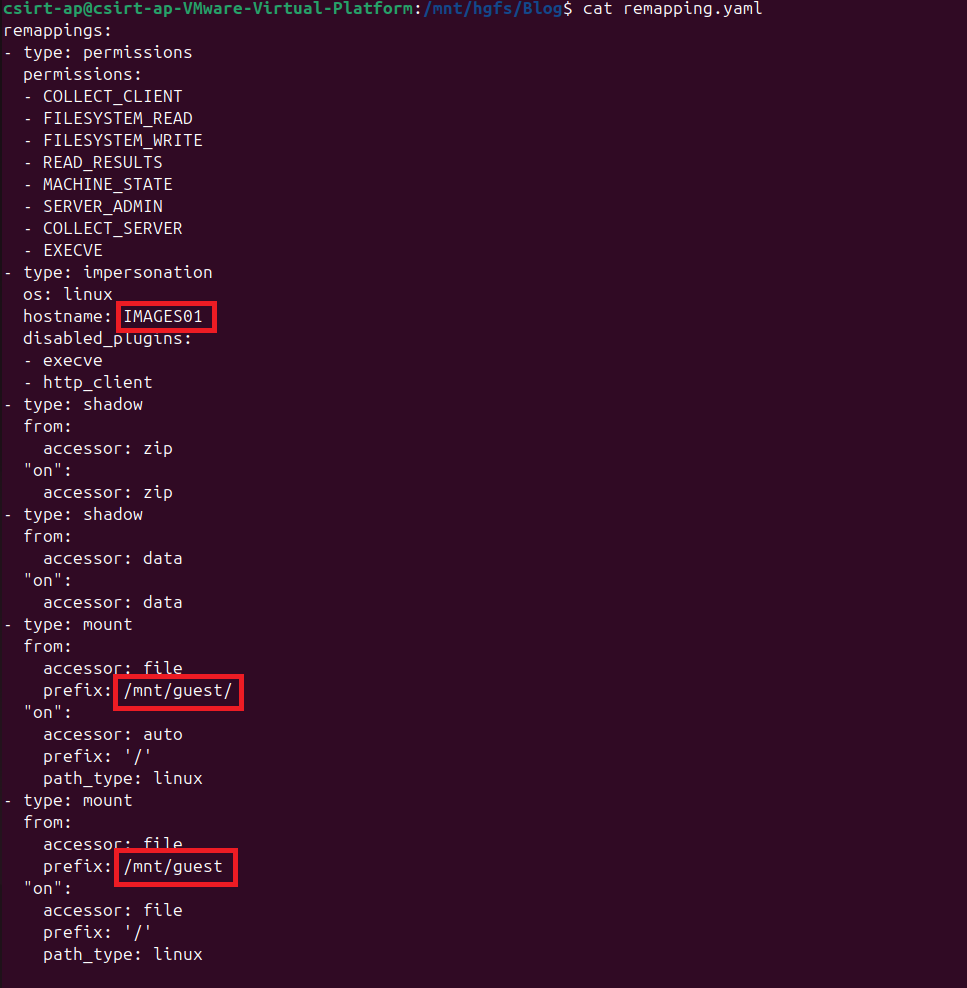
For Linux images, Velociraptor does not currently provide automatic remapping generation comparable to Windows systems. Instead, a remapping configuration must be created manually or adapted to the mounted filesystem structure. Since the filesystem has already been mounted using guestmount in the previous step, the remapping file can now be configured to expose the mounted directory to Velociraptor and emulate the original system. 

A typical remapping file defines: 

  • The hostname to impersonate. 
  • The operating system type. 
  • Filesystem mappings between the mounted image and the virtual client. 
  • Environment variables required by artifacts. 

You may customise the hostname and prefix fields to match the system being investigated. 

 Remapping.yaml:

yaml
remappings: 
- type: permissions 
  permissions: 
  - COLLECT_CLIENT 
  - FILESYSTEM_READ 
  - FILESYSTEM_WRITE 
  - READ_RESULTS 
  - MACHINE_STATE 
  - SERVER_ADMIN 
  - COLLECT_SERVER 
  - EXECVE 
- type: impersonation 
  os: linux 
  hostname: IMAGES01  
  disabled_plugins: 
  - execve 
  - http_client 
- type: shadow 
  from: 
	accessor: zip 
  "on": 
	accessor: zip 
- type: shadow 
  from: 
	accessor: data 
  "on": 
	accessor: data 
- type: mount 
  from: 
	accessor: file 
	prefix: /mnt/guest/ 
  "on": 
	accessor: auto 
	prefix: '/' 
	path_type: linux 
- type: mount 
  from: 
	accessor: file 
	prefix: /mnt/guest 
  "on": 
	accessor: file 
	prefix: '/' 
	path_type: linux
Performing Linux Dead Disk Forensic Analysis with Velociraptor

Starting the Virtual Client 

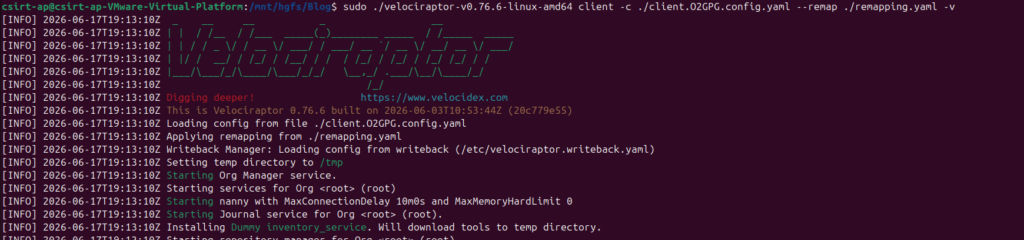
With the filesystem mounted and the remapping configuration in place, the next step is to start a Velociraptor client that will use the mounted image as its data source. Rather than collecting information from the analyst workstation, the client will operate against the remapped filesystem and present it to the Velociraptor server as a virtual endpoint. 

Launch the client using your organisation’s Velociraptor configuration and the remapping file:

Shell
[sudo] ./velociraptor-v0.75.6-linux-amd64 client -c ./client.XXXXX.config.yaml --remap ./remapping.yaml -v 
Performing Linux Dead Disk Forensic Analysis with Velociraptor

The client.XXXXXX.config.yaml file corresponds to the standard client configuration generated by your Velociraptor deployment. It contains the information required for the client to authenticate and communicate with the server. By selecting the client configuration from a specific organisation, you can choose which organisation the virtual host will enroll into and appear under within the Velociraptor GUI. 

The key parameter here is –remap, which instructs Velociraptor to use the filesystem mappings defined in remapping.yaml. As a result, all artifact collections and filesystem queries are performed against the mounted forensic image rather than the host running the analysis. This effectively transforms the disk image into a virtual Velociraptor client, allowing investigators to leverage familiar workflows and artifacts directly from the GUI. 


Accessing the Virtual Host 

Once the client has been launched with the remapping configuration, Velociraptor registers the mounted disk image as a virtual endpoint within the GUI. The hostname displayed corresponds to the value defined in the remapping file, allowing the image to be managed in the same way as a regular enrolled client. 

Investigators can then leverage standard Velociraptor workflows to analyse the offline system, including: 

  • Running artifact collections against the mounted filesystem 
  • Executing hunts across one or more virtual endpoints 
  • Applying labels and organising clients within the platform 
  • Performing filesystem and timeline analysis 

Because Velociraptor presents the disk image as a client, most artifacts that rely on data stored on disk can be executed without modification. This provides a familiar investigation experience while enabling efficient forensic analysis of acquired Linux images directly from the Velociraptor interface. 


Handling Client Identity Across Multiple Disk Images 

One important consideration when performing dead disk analysis with Velociraptor is how the virtual client identity is managed. During startup, Velociraptor generates a writeback file that stores the client’s unique identifier and enrollment information. As long as this file remains present, subsequent executions will reuse the same Client ID. 

This behavior is useful when repeatedly analysing the same image, but it can become problematic when processing multiple forensic images from the same analysis workstation. Without additional configuration, different images may appear as the same client in the Velociraptor console. 

To avoid this, investigators have two options: 

  1. Remove the existing writeback file before launching a new virtual client. 
  2. Assign a dedicated writeback file to each disk image being analysed. 

The second approach is generally recommended, as it preserves a unique client identity for every image and simplifies case management within Velociraptor. 

For Linux systems, a custom writeback file can be specified directly on the command line:

Shell
sudo ./velociraptor-v0.75.6-linux-amd64 client \ -c ./client.OSU0G.config.yaml \ --remap ./remapping.yaml \ --config.client-writeback-linux=/path/to/writeback.yaml -v 

By maintaining separate writeback files, each forensic image is enrolled as an independent virtual endpoint, making it easier to track collections, hunts, and investigation results across multiple cases.

Performing Linux Dead Disk Forensic Analysis with Velociraptor

Specific Considerations for Dead Disk Analysis 

Velociraptor operates exclusively against the contents of the mounted filesystem exposed through the remapping configuration. The virtual client does not interact with a running kernel, active services, memory, or any other live operating system components. Instead, it analyses the files present within the mounted image as if they belonged to a live endpoint. 

Because the analysis is based entirely on persistent storage, artifacts that depend on runtime state are unavailable. This includes: 

  • Physical or process memory acquisition 
  • Running process enumeration 
  • Process dumps and command-line arguments 
  • Active network connections and socket information 
  • Currently logged-in users and active sessions 
  • Runtime kernel information 
  • Live system telemetry and performance data 

Conclusion 

Velociraptor’s dead disk analysis capabilities provide an efficient way to investigate forensic disk images using the same workflows and artifacts commonly applied to live endpoints. By mounting a Linux image and leveraging a remapping configuration, investigators can emulate a virtual host directly within the Velociraptor ecosystem, simplifying evidence analysis and reducing the need for multiple forensic tools. 

While live-system artifacts remain unavailable, this approach offers powerful access to filesystem-based evidence and enables scalable investigations across numerous disk images. With proper writeback management and remapping configuration, Velociraptor becomes a valuable platform for both live response and offline forensic analysis.


Interested in our Incident Response Services?

  • Share